 Active Metrics
Workouts
Starting a workout
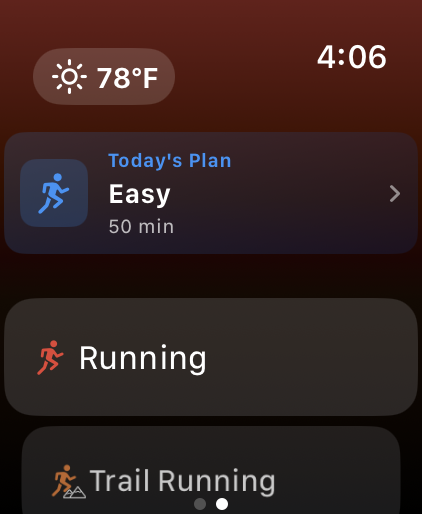
Open Active Metrics on your watch and you land on the start screen: a list of all 10 sports — running, trail running, indoor running, walking, indoor walking, cycling, indoor cycling, hiking, open water swimming, and strength training. Sports you’ve favorited show a star and pin to the top of the list; you can favorite, reorder, or hide sports in Settings → Activities (swipe right from the start screen to reach Settings).
If a planned workout has synced from your iPhone, a Today’s Plan card sits above the sport list — tap it to see the plan and start it directly.
Before you start
Tap a sport to reach its pre-start screen. The icon row across the top configures this workout:
- Goal — a simple time or distance target for the session.
- Plan — pick a structured workout you’ve built for this sport (only shows if you have any).
- Alerts — per-sport target alerts (see below).
- Route — outdoor sports only: follow a saved route or generate a new one. See Routes.
- Share — outdoor sports only, shown when live sharing is set up. See Beacon.
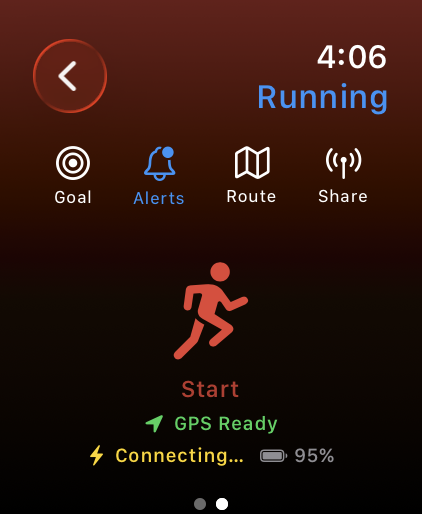
The big sport icon is the start button. Outdoors, a GPS status line below it shows Searching, Acquiring, or GPS Ready. If you tap start before GPS has a good fix, a GPS Not Ready prompt warns that tracking may miss the first stretch and offers Start Anyway or Wait.
During a workout
The workout screen is a set of horizontal pages. The center is your data pages — swipe up and down through the grid, focus pages, and map (see Data Screens). Swipe right for Controls, right again for in-workout Settings, or left for Now Playing.
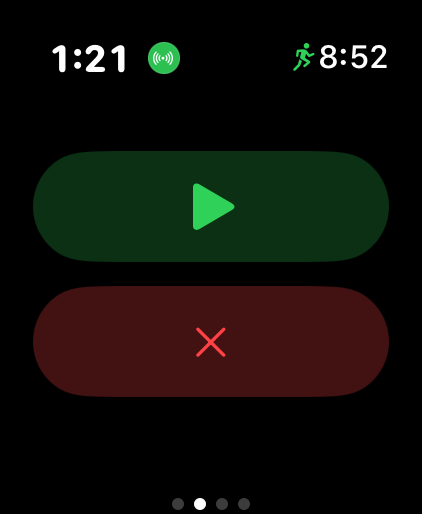
Controls has Pause while you’re moving. While active you also get Lap (or Next during an open interval step). Once paused, the buttons become Resume and End Workout — ending asks you to Save or Discard.
A few behaviors are configurable in watch Settings → Workout:
- Auto-Lap — mark a lap automatically every set distance (or off for manual laps only).
- Auto-Pause — outdoor workouts pause when you stop moving and resume when you start again.
- End on Workout Complete — automatically end when a structured workout’s last step finishes.
- Action Button — on watches that have one: Lap, Pause / Resume, Next Set, or None.
Each lap (manual or auto) shows a full-screen card with the lap time, distance, pace, and heart rate — tap or lower your wrist to dismiss it. The in-workout Settings page also lets you toggle auto-pause, mute voice for this session, edit alerts, change pages and layout, stop live sharing, or end route navigation mid-run.
Alerts
Each sport has its own alert config: pace, heart-rate zone, cadence, and power, each with an above and a below threshold you can enable independently (which metrics are offered depends on the sport — cycling skips pace, swimming and strength are heart-rate only). Set them from the Alerts icon before you start or from in-workout Settings. When you drift past a threshold, the watch buzzes and shows a banner with the target; alerts then cool down for a bit so they don’t fire continuously.
Voice announcements
In watch Settings → Voice, turn on Voice Announcements and choose which categories speak: Laps, Alerts, Navigation, and Workout Complete. A Preview button plays a sample cue. Announcements play through connected headphones or the watch speaker, briefly pausing your music, and cover things like “Starting workout”, lap number and time, alert cues (“Pace slow”), off-course and turn cues, and “Workout complete”. You can mute them for a single session from in-workout Settings.
Structured workouts
Build interval workouts on your iPhone in the Plan tab. A workout is either Simple (one time, distance, or open goal) or Interval: an optional warmup, one or more repeated work/recovery blocks, and an optional cooldown. Every step can carry a target — HR zone, HR range, pace range, power range, or cadence range.
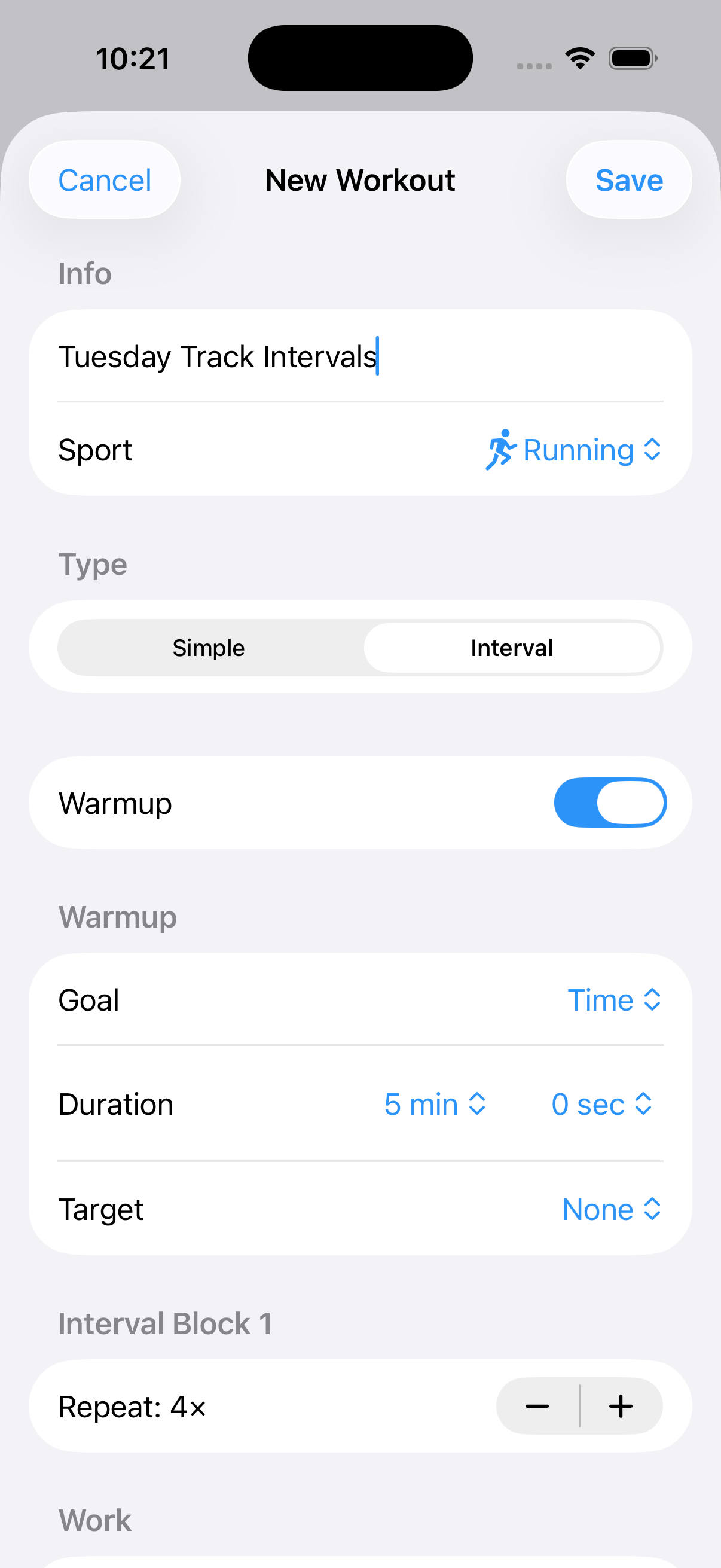
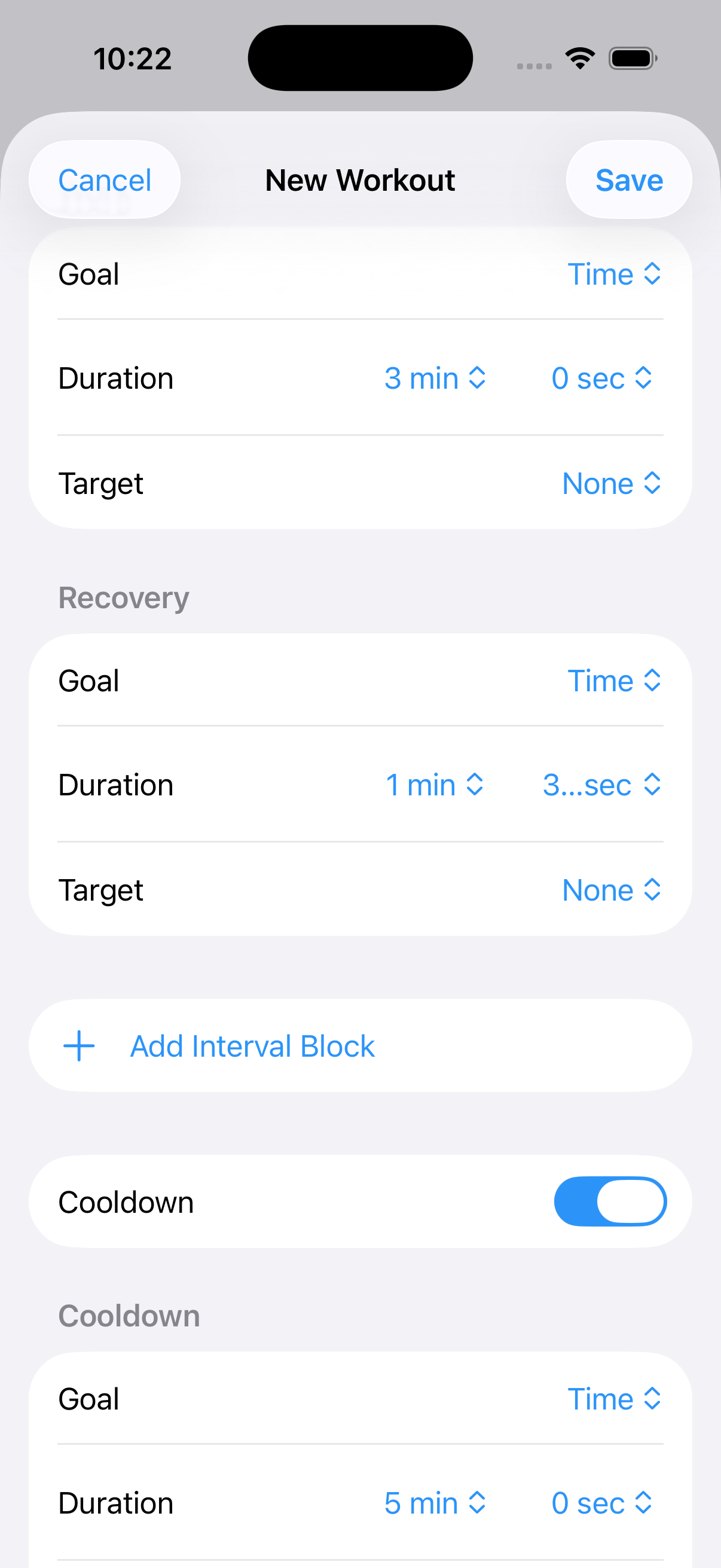
Saved workouts sync to the watch. Pick one from the Plan icon before starting (a suggested workout from today’s plan shows as a banner there too). While it runs, an interval page sits above your data pages showing the current step, time or distance remaining, a progress bar, your live metric colored against the step’s target, and what’s next. Open-ended steps advance when you tap Next.
Strength training
Strength workouts swap the usual first page for a Sets page. While you lift, the watch estimates reps from wrist motion — it works best for moves where your wrist travels each rep (curls, presses, rows) and it’s an estimate, not a source of truth. Tap Finish Set and a quick entry sheet appears, seeded with the estimated reps: adjust reps and optional weight with the Digital Crown, then Log Set. A rest timer runs until you tap Next Set. The Sets page also shows your previous set’s reps, weight, and time so you can try to beat it.
The summary
After saving, the summary shows duration, distance and average pace (for distance sports), average and max heart rate, calories, elevation gain (outdoors), a rough recovery estimate, weather at the start, and your lap list — or your set list with reps and weights for strength. Rate the session’s Effort from 1–10 with the slider; it saves to Apple Health and feeds training analytics.
If saving to Health fails, the summary shows a banner with a Retry button — your workout isn’t lost. And if the app is interrupted mid-workout (crash or reboot), the next launch detects the session is still active in HealthKit and offers Resume run or Discard.
Once saved, the workout syncs to your iPhone for maps, charts, and splits — see Reviewing on iPhone.