 Active Metrics
Widgets & Complications
Active Metrics puts your training on your watch face, your iPhone home and lock screens, and — during a workout — the Dynamic Island.
Watch complications
The watch complication shows today’s planned workout when you have one (name, target distance or time, and heart-rate zone), and falls back to your weekly distance otherwise. It comes in three shapes:
- Circular — weekly distance in a small round slot.
- Rectangular — today’s plan with its target, or the weekly total.
- Corner — a sport icon with the plan name or weekly distance curved around it.
To add one: touch and hold your watch face, tap Edit, swipe to the complications screen, tap a slot, and pick Active Metrics. The complication updates after workouts, plan syncs, and at midnight.
iPhone widgets
The Today widget mirrors the Today tab: your energy and readiness rings, the recovery countdown, and today’s planned workout or weekly distance. It comes in home-screen small and medium sizes plus lock-screen circular, rectangular, and inline accessories.
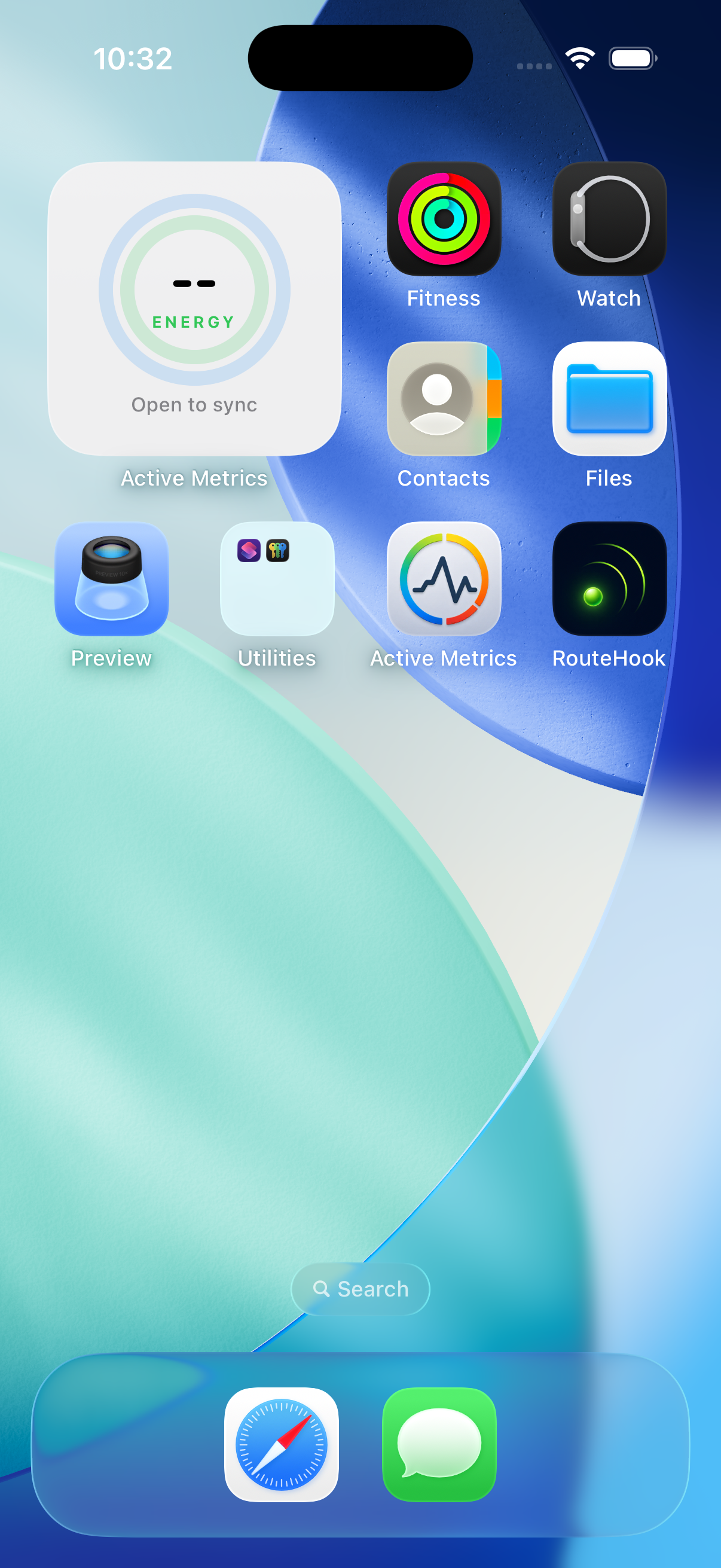
To add it: touch and hold the home screen, tap the + button, and search for Active Metrics. For the lock screen, touch and hold the lock screen, tap Customize, and pick a widget slot.
The recovery countdown ticks down on its own; energy and readiness refresh when the app recomputes them, so open the app occasionally to keep the numbers current.
The live workout activity
When a workout runs on your watch, your iPhone shows a Live Activity automatically:
- Lock screen — a card with the timer, distance, pace, heart rate, and power when present.
- Dynamic Island — two compact metrics while collapsed; press and hold to expand to the full set.
You choose the two compact metrics in the phone app under Settings → Live Workout — one for the left side of the island, one for the right (time and heart rate by default). The expanded island and lock-screen card always show the full set.
Tapping the Live Activity opens the live workout screen, where you can watch metrics stream in and pause, resume, or end the workout remotely — see Reviewing Workouts on iPhone for details.