 Active Metrics
Reviewing Workouts on iPhone
The watch records; the phone is where you dig in. Workouts save to Apple Health when you end them and appear in the Workouts tab on iPhone.
The Workouts tab
The tab opens with a training calendar, a This Month card, and your recent workouts:
- This Month shows per-sport totals — workout count, time, distance, elevation — for your top sports, plus a distance delta against last month. Tap it for the full month-by-month and year-by-year history.
- Recent Workouts lists your latest three; See All Workouts opens the full list. Tap any workout to open the review screen.
If the list stays empty after you’ve recorded workouts, Apple Health may be blocking read access — the empty state has an Open Health Settings button to fix it.
The review screen
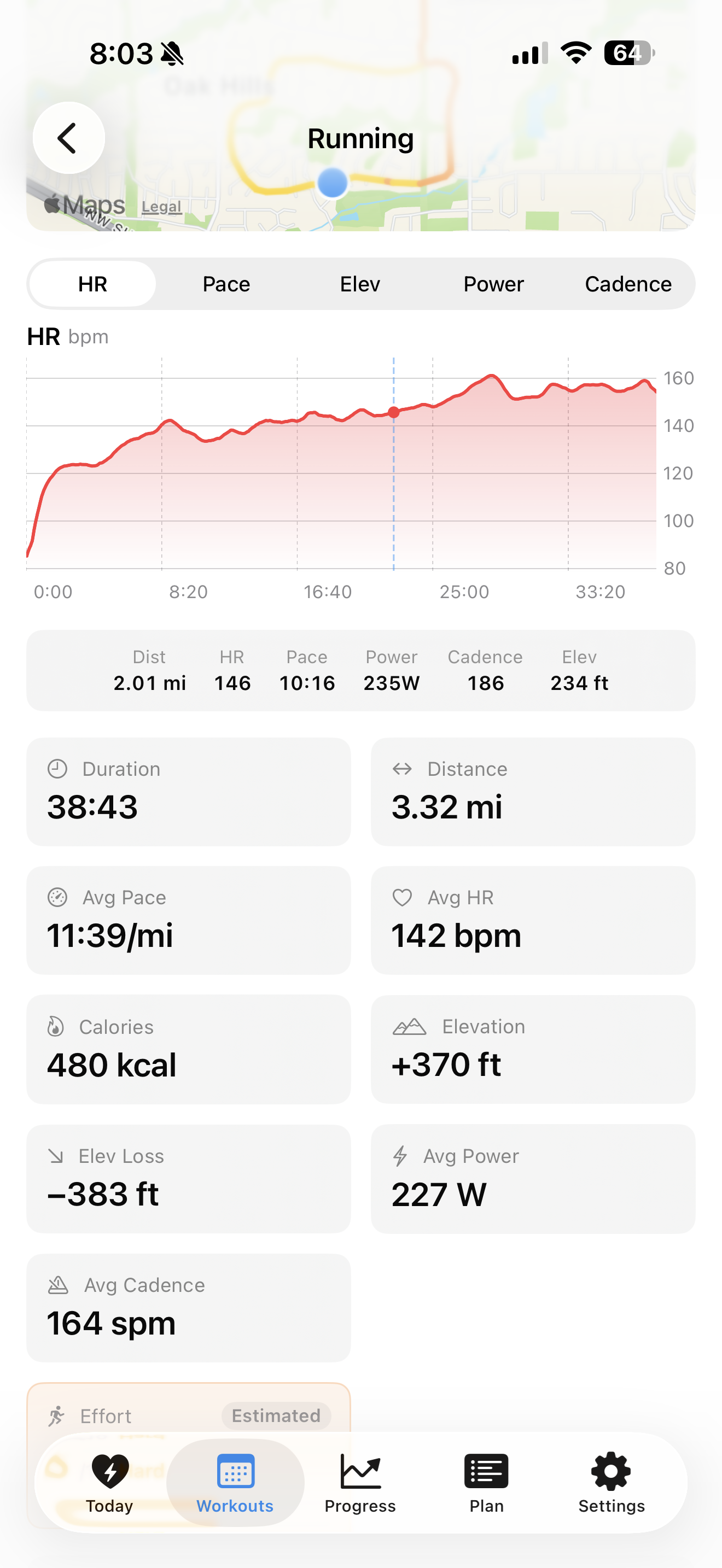
Outdoor workouts open with the route map, colored by heart-rate zone, above a chart. The two are linked:
- Scrub the chart — press and hold, then drag. A pin follows your position on the map, and a tooltip shows the metrics at that moment.
- Tap the map — the chart cursor jumps to the nearest point on the route.
Above the chart, a segmented picker switches the metric: HR, Pace, Elev, Power, and Cadence. Only metrics with real data appear — no power meter, no Power tab.
Below the chart is a stats grid (duration, distance, pace, heart rate, calories, elevation, and — when present — elevation loss, power, cadence, and 1-minute HR recovery), plus a “vs your typical” strip comparing the workout to your usual sessions of the same sport.
Splits and HR zones
Every workout with distance gets per-kilometer or per-mile splits (following your unit setting), each with pace, average heart rate, and time. Splits faster than your workout average show green; slower ones show red.
The HR Zones bar shows how your time split across zones 1–5, from blue (easy) through red (max).
Effort rating
Right after a workout, the summary screen on your watch asks you to rate the effort from 1–10. That rating shows on the review screen as the Effort cell. If you skipped rating it, the app shows an estimated score instead, marked with an Estimated badge.
Insights
The Insights section leads with a single headline — the most actionable thing the engine found in this workout. The rest sit behind it, an Active Metrics Pro feature. Some examples of what the engine looks for:
- Pace Fade / Negative Split — whether you slowed down or sped up across the workout.
- Aerobic Decoupling — whether pace and heart rate drifted apart in the second half, a sign the effort exceeded your aerobic threshold.
- Hot Start — an opening split much faster than your average that you paid for later.
- Low / Optimal Cadence — how your running cadence compares to the efficient turnover range.
Others cover time near max HR, elevation impact, HR recovery, power smoothness, and zone quality. Insights need enough data to be meaningful — short workouts or sports without pace/HR data generate fewer of them.
Export to GPX or TCX
The share button in the top-right writes the workout to a file and opens the share sheet: Export GPX for outdoor workouts with a route, Export TCX for anything with a timeline. Both import into Strava, Garmin Connect, and most other training platforms. There’s no direct Strava sync yet.
Strength workouts
Strength workouts recorded on the watch include a Sets table: each set with its rep count, weight, and duration, with rest periods listed between them.
Watching a workout live from your phone
While a workout runs on your watch, your iPhone shows a Live Activity — a card on the lock screen and, on supported models, the Dynamic Island. Tap it to open the live screen:
- Live timer plus distance, pace, heart rate, power, and cadence, streamed from the watch.
- Pause, Resume, and End buttons that control the workout on the watch remotely. Ending asks whether to save or discard.
- A Share Live Location button when Beacon is on for the workout.
The screen shows “Waiting for watch…” until the first data arrives, and “Reconnecting” if the watch goes quiet for a few seconds — for example, when you’re briefly out of range. The watch keeps recording either way; the phone is only a viewer.
You can pick which two metrics appear in the compact Dynamic Island — see Widgets & Complications.