 Active Metrics
Routes & Navigation
Routes are an Active Metrics Pro feature — importing, building, generating, and following. See the FAQ for what Pro covers.
Where routing runs
Routing happens on your device, not on a server. Snapping a hand-built route to real roads and generating a loop both run on the watch or phone itself, using a routing region you download once.
Download one from the watch under Settings → Routing Regions → Nearby, or from the Plan tab on your iPhone. After that, route generation works with no signal at all — useful on a trailhead with one bar. If you try to route somewhere you haven’t downloaded, the app names the region you need and offers to fetch it.
Import a GPX file
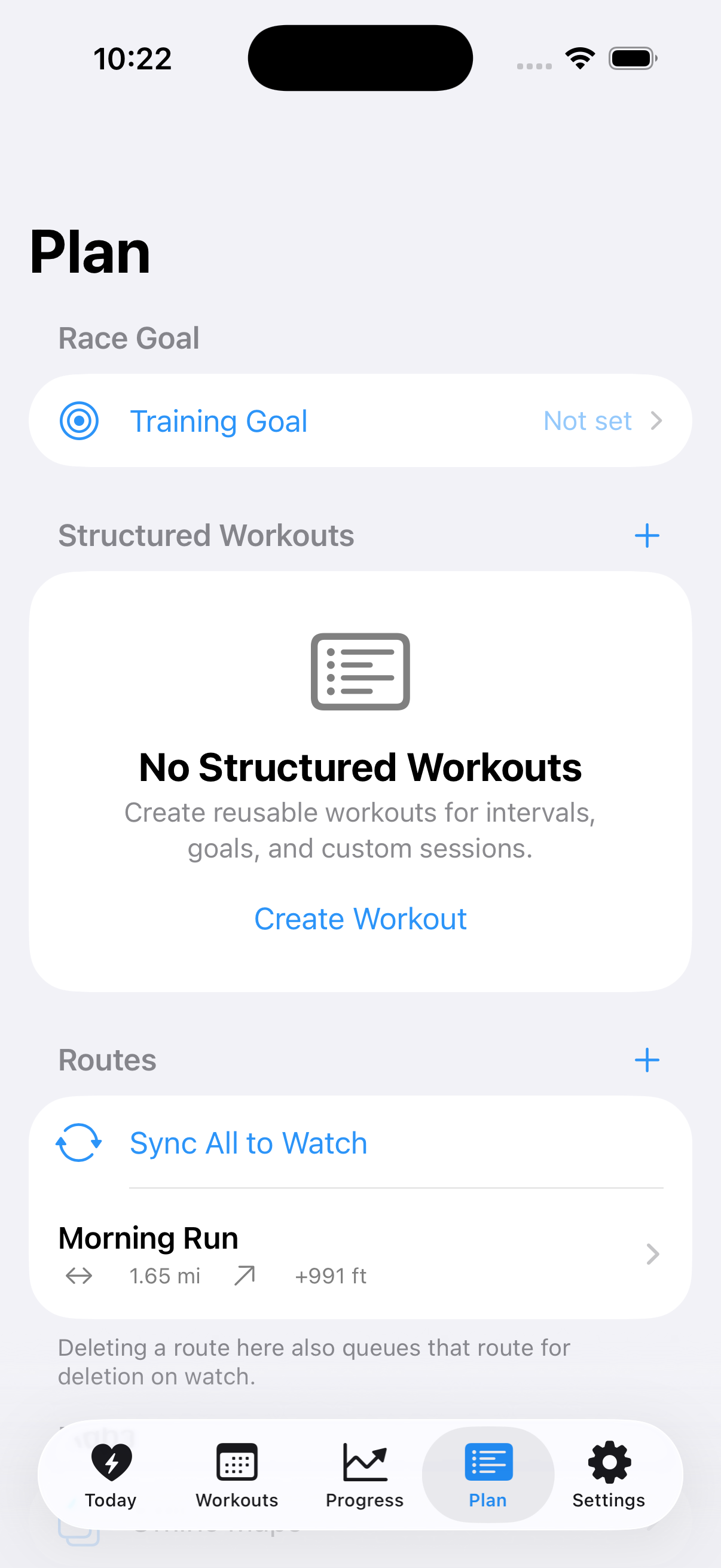
On your iPhone, open the Plan tab and tap + in the Routes section, then Import Route to pick a GPX file. You can also share a GPX file from another app (Files, Mail, a race website) straight into Active Metrics — both paths land in the same route library.
A banner confirms the import and the route is queued for watch sync automatically. If your watch isn’t reachable at that moment, use Sync All to Watch later. If the file has no track or route points the app can read, you’ll get an import-failed message instead.
Build a route by hand
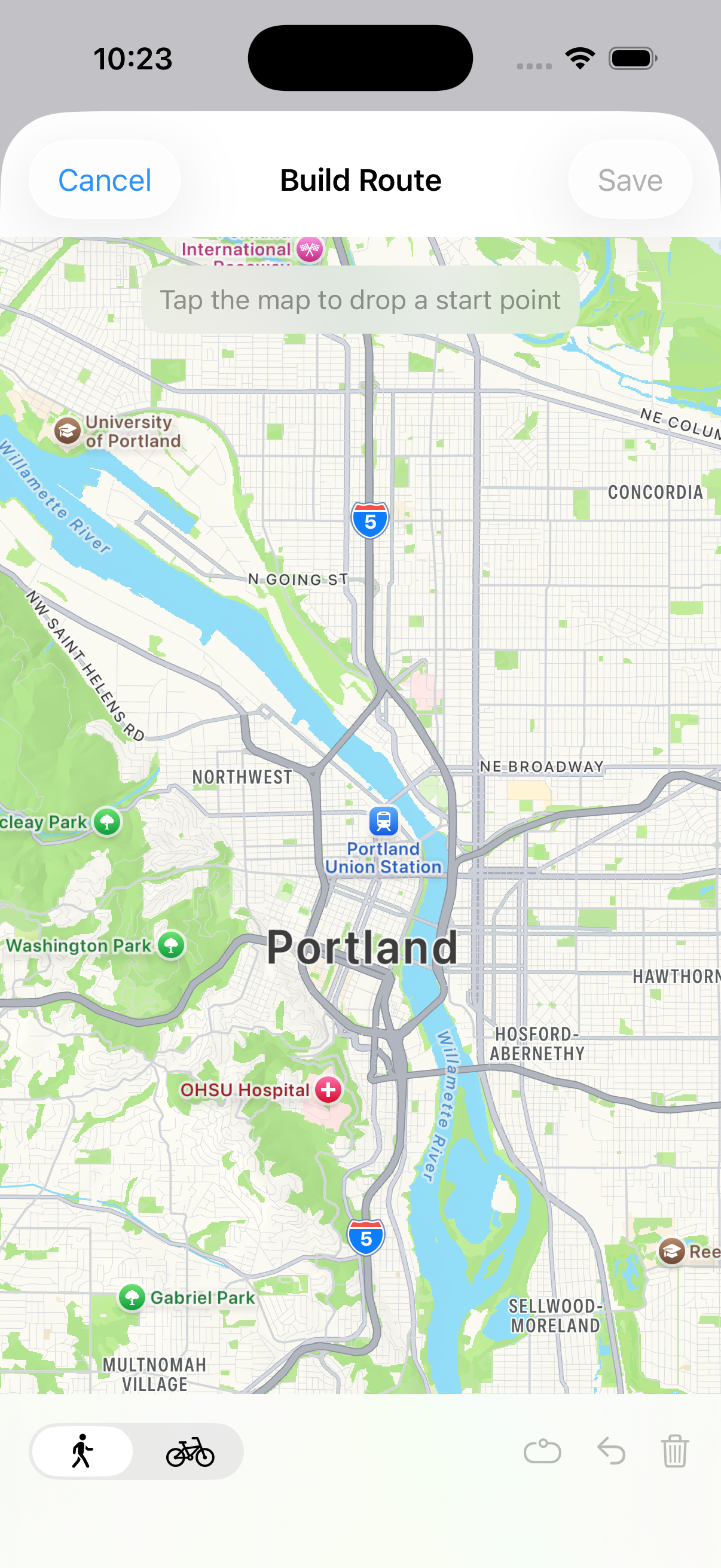
In the same Routes section, tap + → Build Route. Tap the map to drop a start point, then keep tapping to add waypoints — the path snaps to real roads and trails, and a live readout shows distance and elevation gain as you go.
The controls along the bottom:
- Walk / bike toggle — switches the routing profile, which changes what the path is allowed to follow.
- Loop to start — routes from your last waypoint back to the start to close the loop.
- Undo — removes the last waypoint. Trash clears everything.
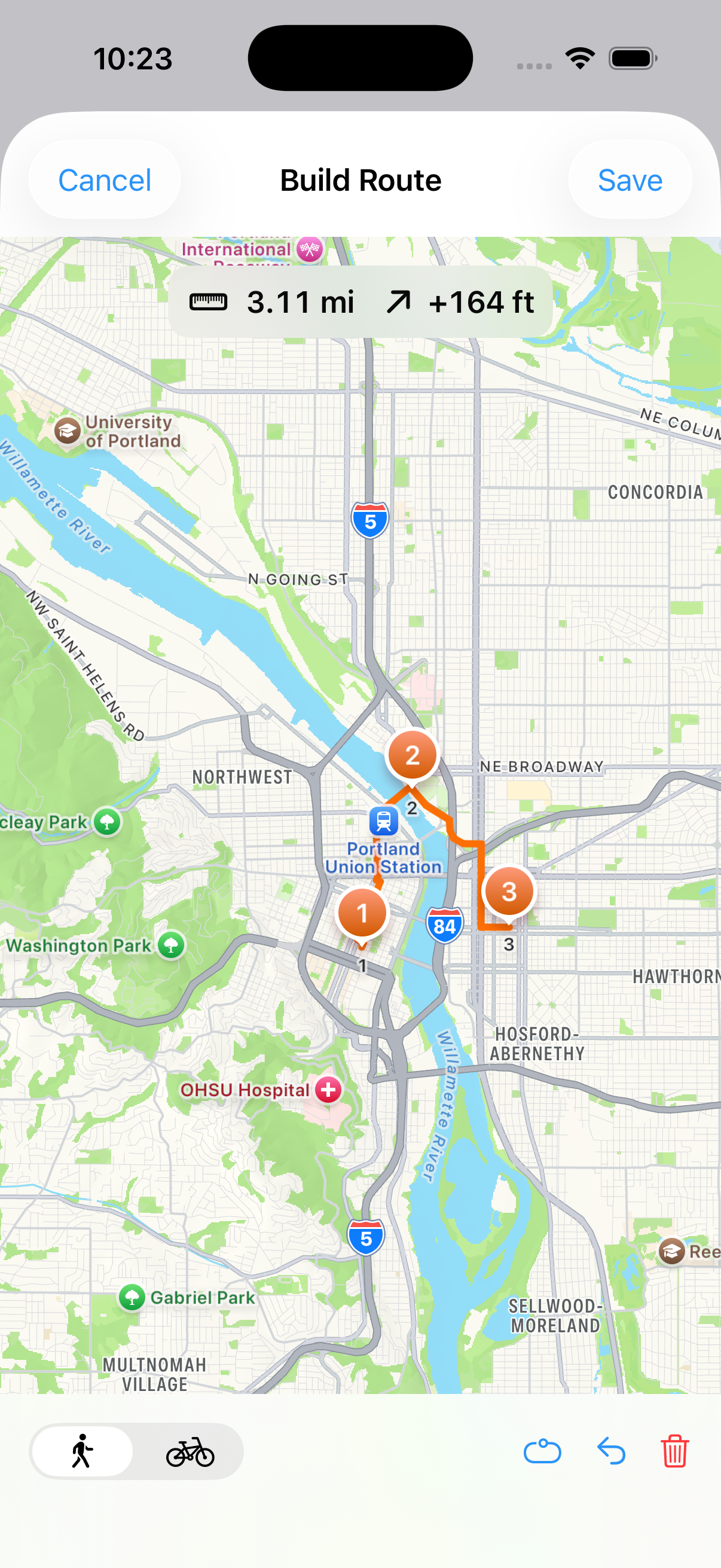
Tap Save, give it a name, and it joins your library and syncs to the watch like any imported route. Route snapping needs a downloaded routing region covering the area. Published regions are the United States for now — tapping outside coverage shows a note instead of dropping a pin.
Your route library
Every route shows its distance and elevation gain in the list; tap one for a map preview and stats.
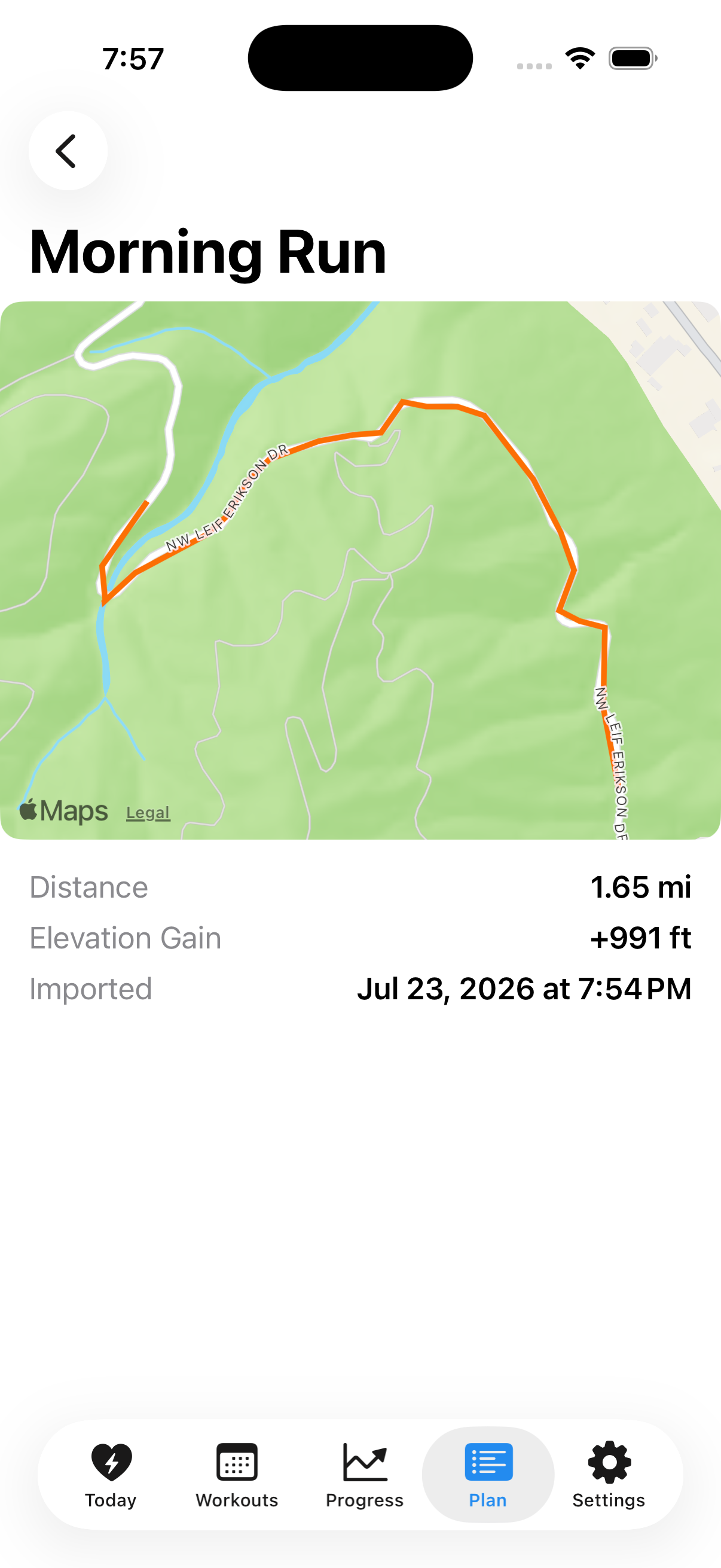
Swipe to delete a route — deleting on the phone also queues that route for deletion on the watch. Sync All to Watch pushes the whole library over at once.
Pick a route at workout start
On the watch, tap a sport on the start screen to open its pre-start screen (see Workouts), then tap Route. You’ll see your synced routes plus None and Generate a Route. Pick one and start — navigation begins automatically. You can also swipe left on a route here to delete it from the watch.
Generate a loop on the watch
Generate a Route builds a round-trip loop from wherever you’re standing — no phone and no signal needed, just a GPS fix and the routing region for where you are. Pick an approximate distance (1–25 km, in half-kilometer steps) and a direction (Any, or one of eight compass points), then tap Generate.
The result shows the loop on a small map with its actual length and elevation — loops are approximate, so it won’t match your requested distance exactly. Try Another generates a different loop with the same settings; Use Route saves it to your library and selects it for the workout.
Generation covers wherever you have a routing region downloaded; published regions are the United States for now. Outside coverage you’ll see a message saying it isn’t available there yet — see the FAQ for what that means. Imported routes still navigate anywhere in the world.
Turn-by-turn on the watch
With a route selected, the watch detects the corners in the route and cues each one as you approach:
- A turn banner appears with the maneuver and countdown distance — “Turn left in 400 ft” — and turns urgent as you get close.
- Haptics fire in stages: a heads-up around 200 m out, then again near the turn, with distinct left and right patterns so you can feel the direction without looking.
- Upcoming turns are also marked on the map page with arrow markers — the next one is highlighted.
- Two data fields track the rest of the course: Distance Remaining and Route ETA. Add them to any grid from Data Screens.
If voice announcements are on, the watch speaks each turn once (“Turn left”, “Bear right”). Toggle this under Settings → Voice: turn on Voice Announcements, then the Navigation switch controls navigation cues specifically.
Off-course warnings
Drift more than about 50 meters from the route and the watch flags it: a red Off route banner with your distance from the course, a wrist tap (on by default), a spoken “Off course” if navigation announcements are on, and a dashed red line on the map pointing back to the route. It clears on its own once you’re back within about 30 meters. Guidance keeps running through the whole detour — cutting a corner or stepping around a closure doesn’t end navigation for the rest of the run. Testing this on purpose — drifting off the course and watching the warning fire — is one of the most useful things a beta tester can do.
Finishing the route
When you reach the end of the route, the watch buzzes twice and shows a route-complete summary with your distance and time. The workout itself keeps recording — end it yourself from the controls page whenever you’re done.
Something not behaving? Check Troubleshooting or email activemetrics@spearssoftware.com. For offline map downloads along a route, see Maps & Offline Maps.